
A couple of weeks back, I was invited to give a talk at the Villanova University’s ECE Day. Slides from my talk are attached below.
Thanks all who came and to Villanova University for having me 🙂
A couple of weeks back, I was invited to give a talk at the Villanova University’s ECE Day. Slides from my talk are attached below.
Thanks all who came and to Villanova University for having me 🙂
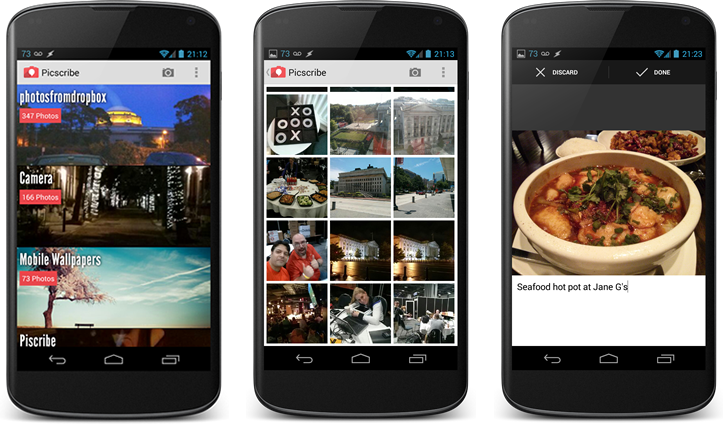
Here is a scenario: You are on a trip and taking a bunch of pictures. Usually there is some context to those pictures that you are trying to capture (what a building is for example or what this dish or drink is that you ate that day and if you liked it or not). While taking pictures is easy with our smartphones today, capturing your thoughts at the moment is much harder and so far I hadn’t found a good way of doing that. If you use a photo service like Flickr or Google Plus/Picasa, you can annotate your albums, but that usually happens much later and is a pain in the ass. Otherwise you have hard-drives full of photos that sit in some folder based albums and often elicit the “Wait, what was this?” face.

To solve this problem, last week I released Picscribe, a photo notes app available now on the Google Play Store for Android (iOS coming soon). Picscribe is a pretty simple app: It lets you take any photo in your phone and add a comment right into the EXIF metadata of the photo itself. Any comments you write are available in the photo forever and not in some proprietary database. The app itself is designed with the latest Android design guidelines in mind and while it took quite a bit of time and effort to get the animations working the way I wanted them to, I think the final result is pretty great :).
I have a bunch of features lined up for future iterations of the app (of course), but I am pretty proud of where the app is today already. If you have an Android phone or a tablet, get the app from Google Play (its FREE!) and let me know if you have any feedback or comments.
 Once a quarter, the Technical and Product Team at Comcast lets all its engineers participate in a “Lab Week”, a tradition that started a while back at CIM and now encompasses a much larger Engineering group across Comcast. Goals of labweek can be different, from learning new technologies to pitching new products and services. You can read a bit more about lab week here
This quarter, I (and Gabo by coercion) decided to work on a data visualization project, mostly as an excuse to learn OpenFrameworks. For the unfamiliar, OpenFrameworks is a C++ based toolkit for “creative coding”. Its used quite a bit in a variety of fields visualizing information or just creating very rich visual imagery. For example, it was used in Tron:Legacy for creating a variety of visuals used in the movie. Being in C++, it gives you so much power and its really nice not really worrying about how many pixels/shapes you are putting on screen. The other thing thats really cool is that its cross platform and your C++ code is compiled to OpenGL based desktop apps or OpenGL ES based Android or iPhone apps.
The app itself was interesting: At my current group, Comcast Innovation Labs, we work quite a bit with startups but often I am very unfamiliar with their history. So the goal of the app was to represent the startup data and see how they compared with their competitors. We never finished our final vision, but the app as it stands currently lets you plug in names of companies and the app will render them on the stage with circles representing the size of their funding on a timeline of when they did close their funding rounds as well as any news stories that mentioned them in that timeframe. You can see a video of the app in use below:
We went from barely remembering C++ and reading up on OF to the project shown below in 4 days. The code is not super clean and there are is also a lot of code that we ended up not using thats in the codebase, but if its on GitHub if you want to take a look. And if you want to install the app just to check it out, you can download it from here
One of the most commonly overlooked parts of building Android applications is touch feedback. While some views like Buttons have touch feedback built into them, thats not the case when using custom views.
The Android Design Guidelines explicitly talk about the UX part of touch feedback and it was also discussed a while back on the Android Design In Action YouTube series:
The problem is that there are no clean standard hooks in the Android framework to implement these. The only implementations I have found have been:
Given the lack of default apis in most of the common layouts, one approach that you jump to (like I did) was to listen to touch events and change background on touch down and up. This is hard to implement perfectly because a touch event can be canceled in a bunch of ways. For example, a user may be swiping across your view and you may still end up showing touch feedback which would be wrong. In our app, we often ended up with views stuck in an incorrect state.
The Android framework’s selector system (or rather the StateListDrawable class) handles a bunch of these situations appropriately already. The best approach therefore is to create a selector and the apply that to your view. Setting that selector as your view’s background though will draw that under all the views on top which doesn’t work either. To fix that, the best approach is overriding the dispatchDraw method and then after calling super, calling your new drawable’s draw method within the bounds of the View, something like:
 @Override

protected void dispatchDraw(Canvas canvas){

super.dispatchDraw(canvas);

touchFeedbackDrawable.setBounds(0,0,getWidth(), getHeight());

touchFeedbackDrawable.draw(canvas);

}
The one gotcha here is that the base ViewGroup does not invalidate custom drawable invalidated automatically, so this is something you have to do by overriding a different method:
 @Override

protected void drawableStateChanged() {

if (touchFeedbackDrawable != null) {

touchFeedbackDrawable.setState(getDrawableState());

invalidate();

}

super.drawableStateChanged();

}
Props to Rich Ratmansky for solving this quirk.
The final result looks something like this:

I have created a sample project to show the experience. You can find the project on Github. This works well, but as you can see it does require a custom ViewGroup class. If anyone from the Android framework team is reading this, having a “touchFeedbackDrawable” property would probably be really useful extension to the framework.
[Update] Had an interesting discussion on this on Google+, whether touch feedback should be shown in a view’s background or foreground. The consensus seems to be background as long as the background is fairly prominent/visible. For opaque content like say images, foreground feedback is pretty much required.
Most developers know about the different ways to specify dimensions of visual elements in Android. While setting dimensions for visual elements is usually done in “device independent pixels”, it is recommended to use “scale independent pixels” (sp) for type. The Android OS provides a setting (under the Display category on stock Android) where users can set the default minimun font size of all applications to small, normal, large or huge, an important accessibility feature for users with poor eyesight. Any text fontSize set in sp’s will scale up or down to respect this setting.
That said, you may want your textView to not scale up or down with the settings. Setting the TextView value to some sp value in the layout.xml file will do that. However if you are setting the text size in code, remember that even if you do read the dimensions from a dimen.xml file with values set in dp, the value returned cannot be used in textView.setTextSize (value) since it will interpret those values as sp’s regardless. To set dp values, use the other setTextSize method that takes an additional parameter: how to interpret the numbers being read.
TL;DR: Use setTextSize(TypedValue.COMPLEX_UNIT_DIP, xx) to set dp values to textviews
If you have installed an application lately chances are that one of the first screens you have run into is an End User License Agreement (EULA). While it may not be as gargantuan as say the iTunes one, most people don’t bother reading it, and just click on the accept. This numbness to the EULA screen has been bothering me lately. Even though I do it, I have very little idea about what I am agreeing to. I make an assumption that its fair hoping that if it goes beyond what it needs to, I would have heard about that on the internet.
As an app developer, I also worry from the other side of the fence. I want users to know exactly what they are getting and only use my apps if they are comfortable with sharing information with my apps. Additionally I am not a lawyer and I don’t really want to make my own EULA. My apps usually do things very similar to other apps and I just want my users to know that.
Whats interesting is that there is another domain developers work in that licensing comes across often: using third party libraries. However there isn’t that much confusion there anymore. There are a handful of popular licenses out there: The MIT license, the Apache license and GPL are the ones that I run into most often and I am careful to only use the appropriate licensed libraries in my software. However no such named licenses seemed to be shared across multiple end user products today.
I would love to see a few standard licenses appear that encompass certain rights and privileges. For example, an Apache Standard App License that will not hold any user data but the developer is not responsible for damages to the device or injury to user while using the app, or an Apache Social App License that says it will store my friends data and photos for a certain period of time. These would also be great as guidelines for independent developers as well on how they should hold and use end user data.

I installed the first installable image of Ubuntu Touch for Android devices today, and it was a little tricky since the install instructions seem to assume an audience already running Ubuntu. Either way, I wanted to do a quick review of it but figured a video might do a better job explaining what I was talking about than trying to write em out. The video is embedded below:
The performance of the build isn’t very good but thats expected. I feel the UX is relying a little too heavily on gestures, way too many of them and a lot of “half-gestures” (swipe halfway for action-1 and all the way for action-2). Also the home screen feels too much like an app store and less like a launch board. Pixels wise the UI looks nice and has some nice animations at times (like clicking on a thumbnail of a movie to see the larger image). Will definitely be interesting to see how this evolves.
In the last couple of months, a few of my friends have moved to Android from iPhones. Some of them reached out to me on advice on devices and apps they should install on their new phones. The Android app ecosystem is pretty rich and while there are a bunch of apps that can replicate the functionality of iOS apps, there are a lot more that I find interesting because of how they leverage the unique strengths of the Android platform. I won’t mention the basic apps that I use like Foursquare, Flipboard, GroupMe or the Google apps like Maps and GMail that you can pretty much get on either platform. This post lists some of the apps that I use that make me a big fan of the Android platform.
An integrated music experience with Google Music, Last.fm, Gigbeat and LyricsPlayer
One of my favorite parts of Android is how applications interplay with each other. The music experience is a great example of this.
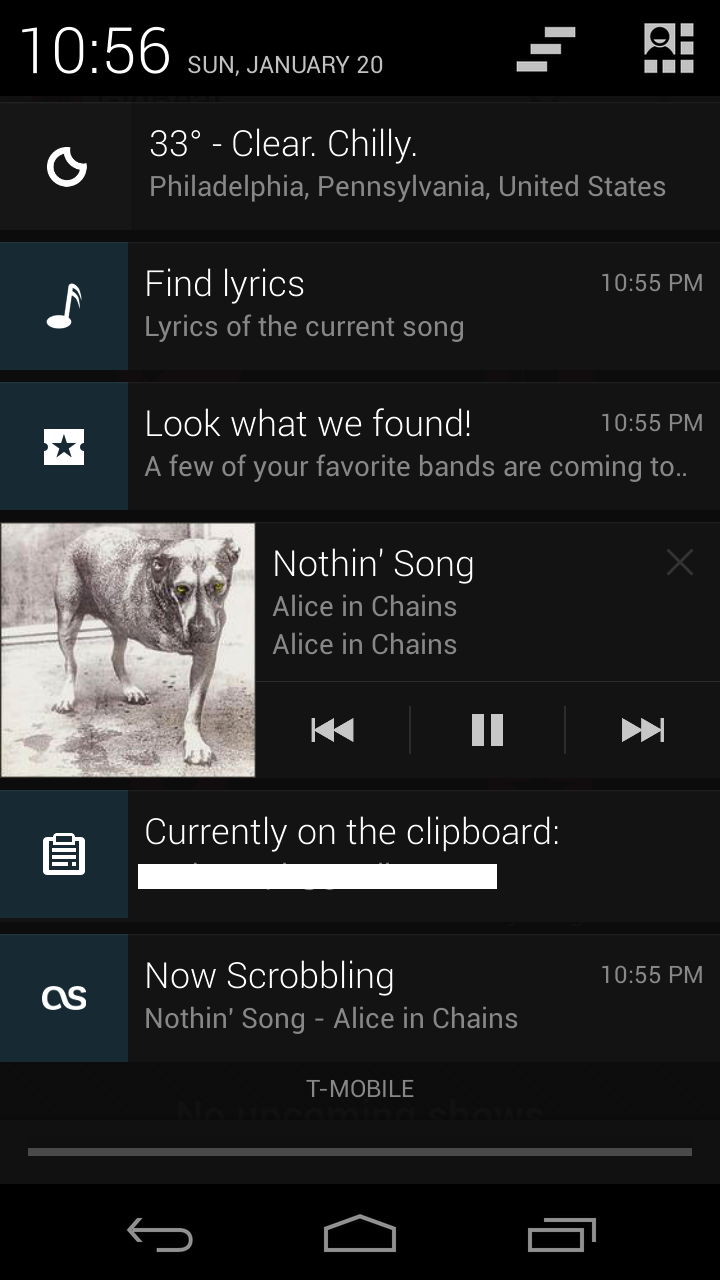
I use Google Music to store my music in the cloud. However I have a bunch of applications that listen to song events and provide different functionality when a song is playing. For example take a look at my notification shade when I have a song playing:
I can control song playback right from the notification shade (Rich Notifications ftw). Additionally, as I play a song, Last.fm scrobbles the song to my Last.fm account. Additionally the LyricsPlayer app offers me a one click link to the lyrics of the song currently playing while Gigbeat searches for upcoming tour dates for the artist.
The photo experience with Panoramas, Photospheres and Instant Uploads
I really love the Android camera app, it was fine before but the recent addition of PhotoSpheres has me completely hooked. I feel it captures the essence of an event or a location so much more. Take a look at my PhotoSphere of the Venetian hotel in Las Vegas when I was there recently for CES (click on the image for the PhotoSphere).
Again, like music playback, taking photos sends a system level event in Android. This enables apps like Dropbox and Google+ to allow instant photo upload services that are pretty useful. I haven’t manually uploaded pictures from my device in ages. Whenever I am ready to share my pictures or view them on a different device, they are just there.
The official Flickr app for Android is pretty mediocre but if you use Flickr, Glimmr for Flickr is an excellent replacement.
AddressBook extensions with LinkedIn, Last.fm and HaxSync
The Android address book (recently renamed to the People App) is really remarkable. It allows applications to annotate user data on the address book with additional information. For example, the LinkedIn application automatically sets a contact’s most recent job title right in the Contact details view. Similarly Last.fm synchronizes your contacts with their Last.fm profiles.
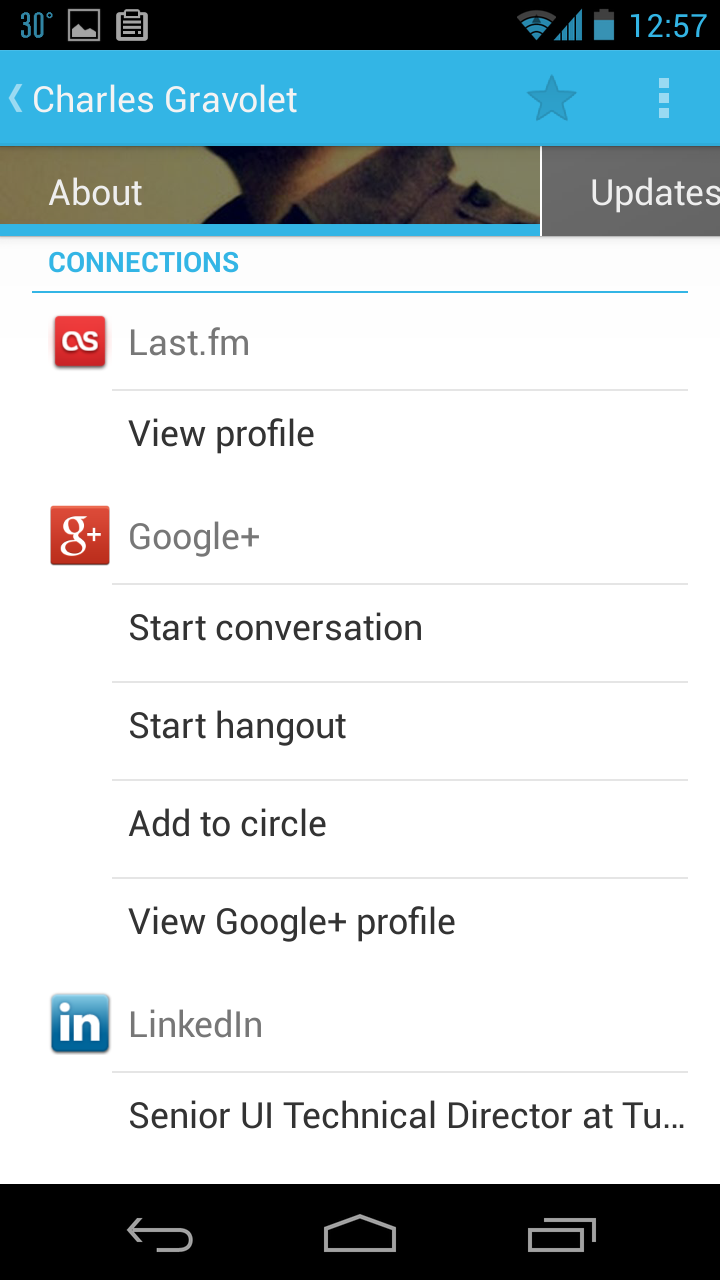
The people app also allows applications to publish recent status updates right to the app that is available in the contact details as well. This feature is kinda nice, though its a little buried so I don’t use it as much. There are a couple of apps on the Play Store like Current Caller Id that show contact social updates when they call, but they don’t tap into the contact app data. Hopefully the native dialer app will use this data in a future version of the OS. Android doesn’t come with native Facebook or Twitter integration, but you can get Facebook updates in your People app using HaxSync.
Managing files with Astro FileManager, AirDroid and DropSync
A big difference between Android and iOS is that Android devices do let you browse the local file system as well as create folders and files there like a regular computer. You can browse the folders on your PC when the device is connected, but you can also use apps like Astro File Manager to browse the local file system. Another pretty useful app to browse your phone’s content is AirDroid that lets you connect to your device wirelessly as well. The biggest thing I use local file systems for is for auto syncing certain folders among my different devices via Dropbox using DropSync. For example, I have one “Wallpaper” folder that syncs across my Mac, tablet and phone. A different app, the Wallpaper changer, then automatically swaps out my wallpapers once every few hours (again, unlike iOS, Android has a wallpaper api). I also have a dropbox folder called currently-reading that has a bunch of pdfs that sync with a folder my pdf-reader app uses as a source for readable files.
Other notable mentions:
Location based information with FieldTrip: Love this app, it indexes a bunch of news and information against location points and shows them when you are around. I use it more when I am traveling to find random interesting trivia.
Twitter with Tweetdeck or Falcon: Falcon is the new kid on the block for Android Twitter clients, and its pretty nicely done, but I am still stuck on Tweetdeck for Android even though it hasn’t been updated in ages. The fact that it polls for Twitter data in the background means I never have to hit “load” on the app. Its pretty nice and minimal.
Managing Podcasts with DoggCatcher: Lots of features and no need to sync to a device. Never had any trouble with it.
Browser: Chrome / Firefox: I like Chrome on my phone but lately have been trying Firefox and it almost seems faster than Chrome at times. I feel the Firefox UI has a little bigger tappable buttons so it seems a little easier to use, it also has a sync across devices feature and allows for plugins!
Keyboard: I am currently running Swiftkey Beta for Android. Its really well done and I do enjoy using it. Additionally I have been using Google voice a lot for dictation and it works surprisingly well. Bonus points for it working offline.
Google Now is neat
The DoubleTwist Alarm app is my default alarm app. It has some nice features like power nap alarms, etc but I like it mostly for the UI.
Thats most of my suggestions. Let me know if there are any other apps that you use that you find really interesting.
In my previous post, I had written a bit about creating custom Layouts for Android. However to make a truly reusable layout there are a few more things we’d probably need:
Creating custom properties:
Since most often we use XML to define our layouts, it makes sense that we would like to assign configuration properties in the XML file as well. The way you do this is by creating a bunch of declare-styleable nodes in your /res/values/attr.xml file. For example:
<resources>
    <declare-styleablename="MyCustomLayout">
        <attrname="mynewproperty"format="string"/>
        <attr name="mynewproperty2" format="string"/>
    </declare-styleable>
</resources>
The name property of the declare-stylable node should reflect the class-name of your custom View/ViewGroup. The attr node inside references the actual property you are trying to create, You can create a bunch of these properties here. The format of the property can be of the following types:
Once you have created the declare-stylable, you have to ensure that those values are visible from the XML document. This is done by adding a new namespace to your application. For example
<com.arpitonline.flint.containers.MyCustomLayout
xmlns:android="http://schemas.android.com/apk/res/android"
xmlns:arpitonline="http://schemas.android.com/apk/res/com.arpitonline.mycoolapp"
... >
The new namespace is just your application package appended to the end of “http://schemas.android.com/apk/res/”. Now any property specified there will be retrievable in the constructor of your custom Layout which you can retrieve like so:
public MyCustomLayout(Context context, AttributeSet attrs) {
     super(context, attrs);

     TypedArray arr = context.obtainStyledAttributes(attrs, R.styleable.MyCustomLayout);
     CharSequence o = arr.getString(R.styleable.MyCustomLayout_mynewproperty);

          // do something here with your custom property

     arr.recycle();
}
Note that its good practice to have getters and setters for the property that you are assigning via XML so that the layout can be instantiated just as completely via code. The method described above can be used as is for custom Views as well. For a more detailed explanation see this link.
Creating Custom LayoutParams
As you create custom layouts, you may want to assign properties to the children that the layout may contain. For example, RelativeLayout has properties like layout_centerHorizontally etc that aren’t relevant for children of LinearLayout ViewGroups.
First, you need to create the attributes in the declare-stylable nodes just as mentioned in step 1 usually with the convention MyCustomLayout_LayoutParams. These will be read by your custom LayoutParams object and kept as properties.
The next step is to create a public inner class named (by convention) LayoutParams that extends ViewGroup.LayoutParams. Additionally in the main ViewGroup class, you have to override 3 methods:
The way this works is if there are custom layout attributes in the children, you get the attributes when the framework calls generateLayoutParams method and its up to you to generate the LayoutParams object based on the values coming in and return it.
Once that is done, there is a call made to checkLayoutParams which seems to give you one last chance to see if the object you created is something you still want to use to determine layout information. This can be done by looking at the class of the LayoutParams object for example. If you return false here, your generateDefaultLayoutParams method will get called which should return a default layout object that you can use anyway.
The layoutparams object will now be magically available during your onLayout pass and can be looked up by calling the view.getLayoutParams() method which you can then use to size and position that particular view.
External Library Projects
Its convenient to package all your custom code in an external Library Project that your app can reference. Doing so is easy, just create a new Android application and check the isLibrary checkbox in the wizard. Then add the library project to your project by right clicking on your application project and going to Preferences > Android screen and clicking the Add… button.
Note that for a long time it wasn’t possible to add custom attrs in Library Projects, this was fixed in SDK 11
The only gotcha here is that everything you have done in your library project may be in the namespace of your library project but when referencing it in your main application, they are referenced with the namespace of the main application project.
I have started a new project on Github where I’ll post some custom layouts/classes that may be helpful. Its pretty early right now but you can see the above code in action at least at the repository.
My friend Orian has been posting a bunch of interesting entries on his blog on the need for an open alternative to the social services we use today. Personally I am a big fan of open source having released a bunch of projects and UI frameworks under the MIT license. I have a lot of strong thoughts on that so I figured its worth a post.
The conversation is not very new of course, there have been a bunch of attempts at open alternatives to the services we use today. The ones that immediately come to mind include:
In fact, if you google “Open source version of <insert-service-here>” you’ll find a bunch of projects and sometimes even companies that have tried to deliver on the promise of the open web. There have even been academics who have tried to come up with the next evolution of the internet as a whole where our data and connections isn’t held captive by companies who see that as a source of corporate value. These specs unfortunately often become so complex that any company looking to build a new product just chooses to ignore them (think RDF/OWL and the mess that is the semantic web specs). But as I see it, there are still a bunch of problems:
Closed is profitable
At least the way companies are evaluated today, closed services tend to be considered very valuable. So “product companies” will never support a spec that may truly open data if they can help it. Even Google, which has a strong profit motive for an open internet, is building a walled Google+ experience. At this point the people who seem to really be trying to build open systems and “change the world” are those with personal convictions to build open applications where there desire to profit is outweighed by a desire for improving the world we live in.
Will regular people pay for “open”?
People like Dalton Caldwell seem to think so, but I’d disagree. At least the vast majority (non technical) of people probably won’t unless they feel its hugely valuable, and these services can only succeed if a majority of a user’s social network are on the network. Unfortunately, openness isnt so much a product feature a lot of folks care about, its a nice to have. Its like computer backups. Noone cares till the day you lose it all and then its too late. If you are truly going to get people to move to a new product from a product that they have invested a lot of time and effort in, whats the reward? Where is the excitement?
Better > Open
I wish folks would look beyond trying to build open services towards building better services that are open. Differentiate by doing well what the existing service does poorly. A lot of people consider open just a philosophical medal of honor, but its actually a very strong business strategy to disrupt established businesses. Think of Android, Apache, Webkit, Red Hat (the first billion dollar company based on open source). If you do open the right way, you can accelerate beyond your competitors even (especially?) if you arrive late to the party.
A different business model
Over the last few years we have been conditioned for free services and products. What I’d really like to see is true innovation in business models. Something beyond a simple pay or ad-supported service. For example:
My point is that there may be something really new that we really need to think about instead of just the “ad support” and “pay” model that we currently discuss.
 Code Zen
